Alerts, Notifications, Reminders & Tasks: Designing Your Simpro Communication System Without Overadministrating
Alerts, Notifications, Reminders & Tasks: Designing Your simPRO Communication System Without Overadministrating
By Erika Entz | simPRO Consultant
simPRO gives you multiple ways to communicate, prompt action, and keep your team informed. That's the good news.
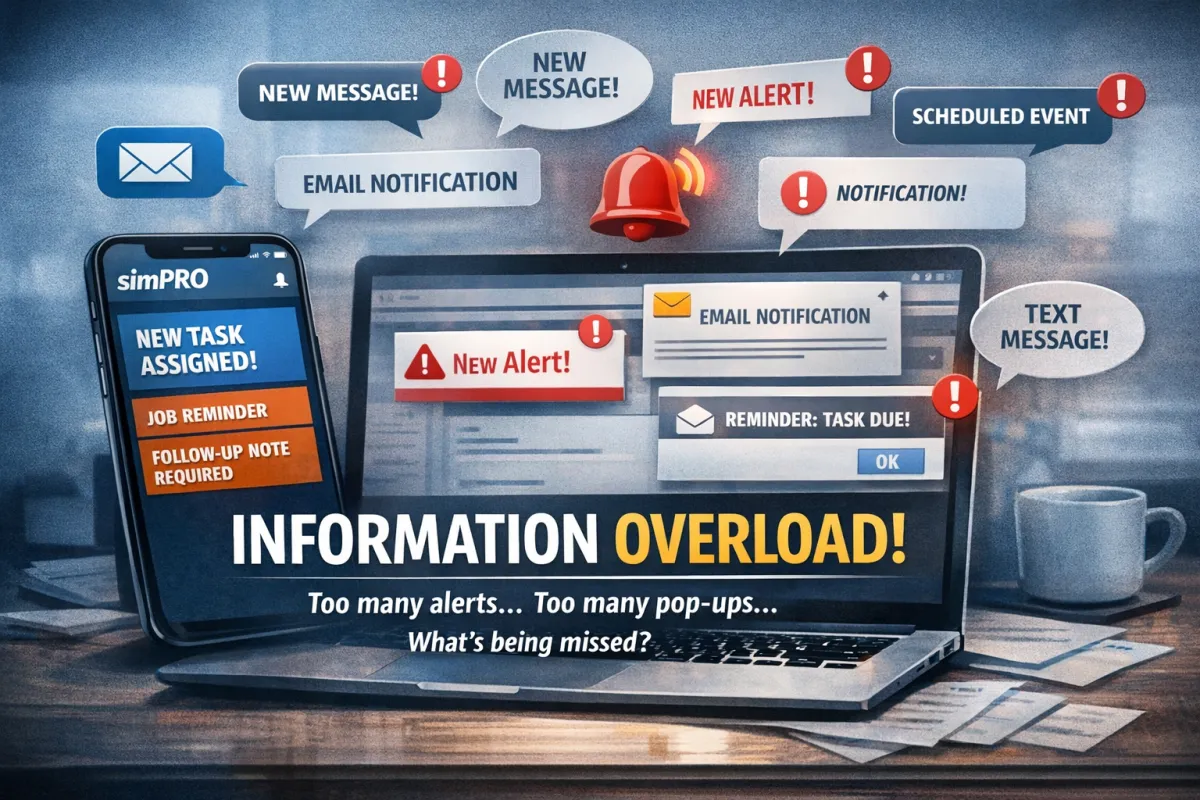
The challenge? Most businesses set these up reactively — adding a notification here, a task there, an alert somewhere else — until the system becomes noise. Staff start filtering out prompts because there are too many of them. Important things get missed because they're buried in a sea of "helpful" reminders.
I've seen this pattern repeatedly in system audits: well-intentioned communication setups that have turned into administrative clutter. The key is designing your communication system intentionally from the start.
This article is a quick awareness piece to help you understand what simPRO offers, the key differences between each option, and how to think strategically about which ones to use — and for whom.
The Two Categories: Internal vs External
The first thing to understand is that simPRO's communication tools fall into two broad categories:
In-system only — these show up inside simPRO (desktop or mobile) and are visible when the person is using the system.
External capable — these can send emails or SMS messages to people outside the system, or to staff who are away from simPRO.
This distinction matters. When someone is working in simPRO all day, they can see updates on screen — an email for every change adds unnecessary volume. When someone is rarely at a desk, an in-system alert alone means they may miss important information.
Quick Reference: What Does What

Remember — your field staff might also be receiving email or SMS Notifications on top of what they see in the mobile app. This is where duplication often creeps in.
Understanding Each Option
Alerts
Alerts are system-generated and appear in the Alerts panel (the red number in the top right of desktop). They're triggered automatically by events like overdue invoices, jobs approaching due dates, low stock levels, job cards needing approval, licence expiry, and more. The alerts each person sees are determined by their security group settings.
Follow-up Notes
When you add a note to a job, quote, customer, employee, or contractor record, you can assign a follow-up date and an employee. This creates an alert for that person on that date. These notes appear in the Activity Timeline as well as in the Notes tab on customer, employee, and contractor card files. It's a straightforward way to remind someone (or yourself) to action something — ideal for one-off reminders tied to specific records.
Reminders (previously Banner Alerts)
Reminders are attached to customer or site profiles and pop up when staff open that customer or site (or related jobs/quotes). They're ideal for important information your team needs to know — like "Always call mobile, not office" or "Access via rear gate only." These now show in Simpro Mobile too, which makes them useful for field staff who need site-specific information before arriving.
Pop-up Notifications (Desktop)
When someone is assigned to a task in desktop, a browser notification pops up in the bottom right of their screen (when they're logged in). These are effective for urgent, real-time prompts — particularly useful when the person is actively working in simPRO Premium. They're stored for seven days and can be viewed via the bell icon in the system menu.
Mobile Push Notifications
Field staff using the Simpro Mobile app can receive push notifications when they're scheduled to a new job or when their schedule changes. This requires the technician's phone settings to allow notifications from the app. It's worth being aware these exist so you can factor them into your overall communication design — you may find you achieve the same outcome without also setting up email or SMS notifications for the same events.
Tasks
Tasks are the hybrid option. They live in simPRO as an interactive to-do list tied to jobs, quotes, or customers — and they can also trigger email notifications when created, updated, or closed. Assigned staff receive in-system alerts when tasks are due, plus optional email notifications. Tasks are also visible in Simpro Mobile for field staff. They can include dependencies (sub-tasks), templates for repetitive workflows, and time tracking.
Notifications
Notifications are the automation powerhouse. They send emails or SMS messages based on triggers you configure — status changes, days before/after dates, or on a schedule. You can filter by customer group, project tags, cost centres, and more. These are your tool for external communication (customers, contractors) and for reaching staff who are away from simPRO.
Good to know: SMS notifications require pre-purchased SMS credits — this is an additional cost. Email notifications are included.
Important: Before you enable notifications for customers, test them internally first. There's no "send test email" button — once a notification is enabled, it's live and automatic. Taking time to preview ensures your customers receive exactly what you intend.
The Overadministration Trap
Here's where businesses get into trouble: they set up everything.
Consider an admin person managing quotes. They've set up saved searches to track quotes needing follow-up — great. Then someone also creates an email notification for "quote won online" even though the saved search already surfaces this. On top of that, they're receiving system alerts based on their security group settings for quotes approaching due dates. Now they're getting the same information three different ways.
The result? Staff develop "notification blindness" — they start filtering out prompts because the signal-to-noise ratio is too low. Eventually something important gets missed.
The solution is the right communication for the right people — designed with intention.
Design Principles: Operational Efficiency
Think about how each person in your business actually works:
Office staff using simPRO daily: They're already looking at the screen. Use in-system tools — saved searches, alerts, dashboard reminders, tasks. Build checking alerts and tasks into their daily routine. Their inbox stays clear for communications that genuinely need their attention.
Sales or estimators often out of the office: They're away from simPRO regularly. A notification email or SMS when a new quote request is assigned to them adds genuine value — it tells them something they would otherwise miss.
Field technicians using Simpro Mobile: Think about when to use tasks versus reminders. Tasks are for assigned work that needs to be tracked and completed. Reminders are for important customer or site information that staff need to see when they open a job — like access instructions or customer preferences. Use each for its intended purpose to keep things clear and efficient.
Customers: Use Notifications for automated communication — appointment reminders, quote follow-ups, invoice due dates. Be selective about frequency. One well-timed message is more effective than multiple touchpoints for the same job. Remember to test internally before going live.
Remember External Integrations
Many simPRO users also integrate with CRM systems, marketing platforms, or other automation tools. This adds another layer of communication to consider. When your CRM sends emails based on simPRO data, and simPRO is also sending notifications, customers could receive duplicate messages — or conflicting ones. Map out how all your systems work together to ensure a streamlined, efficient communication flow.
Before You Set Something Up, Ask:
1. Will this person already see this in the normal course of their work? (If yes, consider whether another prompt adds value.)
2. Is there already something that covers this? (Check what's already active — including external integrations.)
3. What action do I want them to take? Is it clear from the prompt?
4. If I set this up for everyone, what does their inbox or notification panel look like at the end of a busy day?
Final Thoughts
simPRO's communication tools are powerful — and with thoughtful design, they create real operational efficiency. Take the time to map out who needs to know what, how they work, and what's the simplest way to get the right information to them.
Less is often more. A well-designed system with fewer, more targeted prompts will outperform one where everything triggers everything.
Once you've designed what's best for your business, be mindful about what you change and how it affects your operation. Making adjustments with a clear plan ensures your team stays informed and efficient.
I'd love to hear from you: How have you been using these features in your business? Have you found a setup that works well, or are you still finding the right balance? Share your experience in the comments or get in touch — I'm always interested to hear how different businesses approach this.
